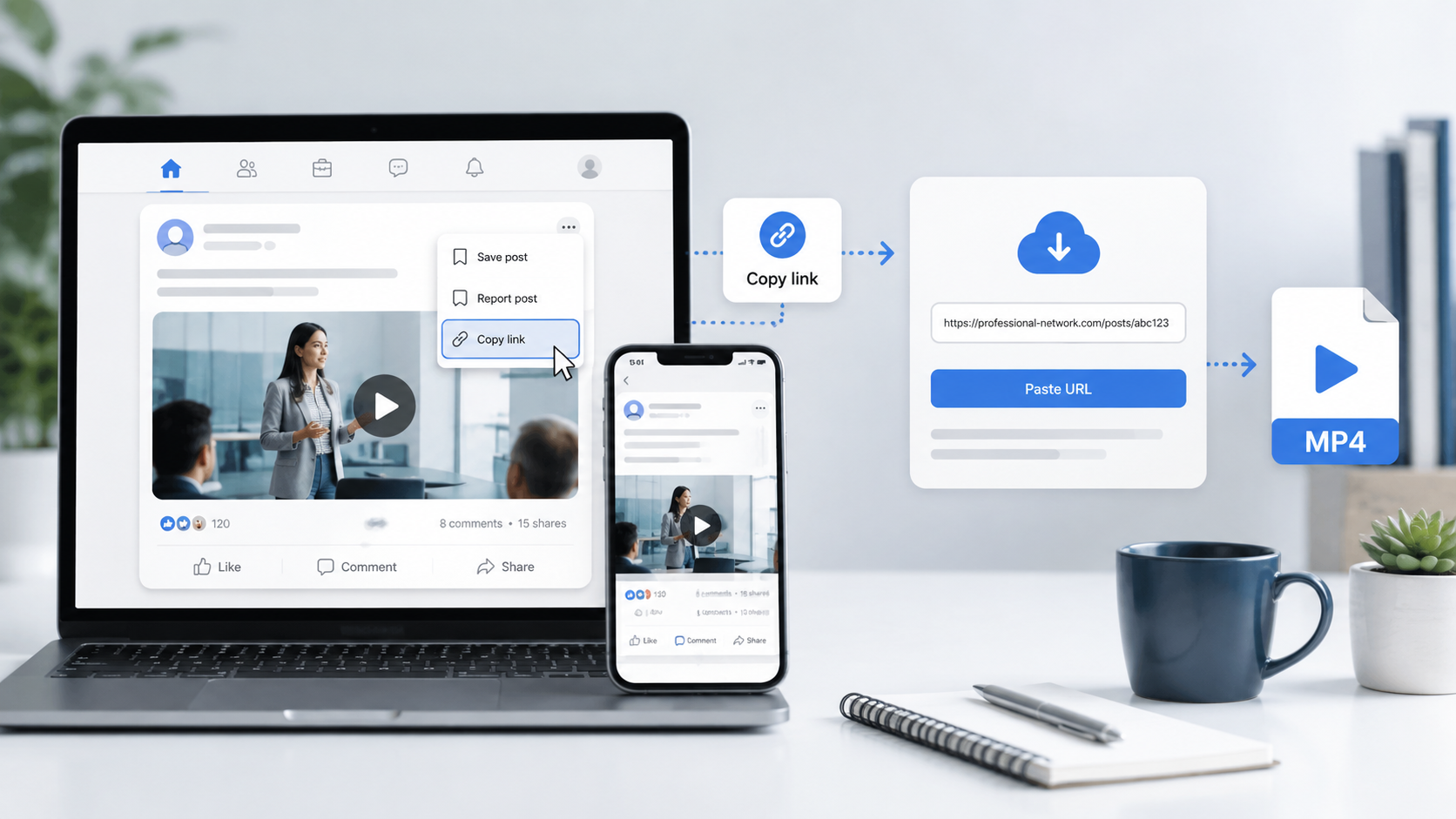
LinkedIn has become much more than a platform for finding jobs and building professional connections.
Today, people use LinkedIn to share tutorials, product demonstrations, interviews, webinars, conference highlights, company announcements, industry insights, training videos, and career advice.
Sometimes you come across a useful video that you want to watch again later.
Maybe it contains an important business tip, a presentation you want to review, a software tutorial, or an industry discussion worth keeping for future reference.
But LinkedIn does not always give you a simple download option.
So, how to download LinkedIn videos?
One simple option is to use an online LinkedIn video downloader for publicly available videos that you own or have permission to save.
In this guide, we'll explain how to download LinkedIn videos online, copy the correct post URL, save videos on different devices, and fix some common download problems.
Quick Answer: How to Download a LinkedIn Video
If you don't want to read the complete guide, here's the quick process:
Open LinkedIn.
Find the video post you want to save.
Click or tap the three-dot menu.
Select Copy link to post.
Open the VdoSaver LinkedIn Video Downloader.
Paste the copied URL.
Click Download.
Select the available quality and save the video.
That's it.
For supported public posts, you can complete the process directly from your browser.
What Is a LinkedIn Video Downloader?
A LinkedIn video downloader is an online tool that helps you save supported videos from publicly accessible LinkedIn posts.
Instead of recording your screen or installing additional software, you can copy the LinkedIn post URL and process it through an online downloader.
This can be useful for saving permitted content such as:
Professional tutorials
Company announcements
Webinars
Conference clips
Training videos
Product demonstrations
Interviews
Educational content
Your own LinkedIn videos
Online tools are particularly convenient because they can usually be accessed from both mobile and desktop browsers.
How to Copy a LinkedIn Video Link
Before downloading a LinkedIn video, you need the correct URL.
Copying a profile URL or company homepage will not work because the downloader needs the link to the individual post.
On the LinkedIn Mobile App
Follow these steps:
Open the LinkedIn app.
Find the post containing the video.
Tap the three dots (⋯) on the post.
Select Copy link to post.
The URL will be copied to your clipboard.
You can now paste this link into a compatible LinkedIn video downloader.
On LinkedIn Desktop
The process is similar on a computer:
Open LinkedIn in your browser.
Find the video post.
Click the three-dot menu.
Select Copy link to post.
You can also open the individual post and copy its URL directly from the browser address bar.
How to Download LinkedIn Videos Online
Once you have copied the correct post link, the rest of the process is simple.
Step 1: Find the LinkedIn Video
Open LinkedIn and locate the public video you want to save.
Make sure the video is part of an individual LinkedIn post.
Step 2: Copy the Post Link
Click or tap the three-dot menu and select:
Copy link to post
Step 3: Open the LinkedIn Video Downloader
Open the VdoSaver LinkedIn Video Downloader in your browser.
Step 4: Paste the URL
Paste the copied LinkedIn URL into the downloader field.
Check that you have pasted the complete post URL.
Step 5: Click Download
Click the Download button and allow the tool to process the public LinkedIn post.
Step 6: Save the Video
Choose the available video quality and save the file to your device.
The basic process is:
Copy LinkedIn Post Link → Paste URL → Download Video
What Types of LinkedIn Videos Can You Download?
LinkedIn contains many different types of professional video content.
Here are some common examples of content people may want to save when they own it or have permission to download it.
LinkedIn Video Type | Common Examples | Why People Save It |
|---|---|---|
Feed Videos | Tips, tutorials, professional advice | Watch useful content again later |
Company Videos | Product updates, announcements, company news | Keep business information for reference |
Webinar Clips | Educational sessions, expert talks | Review important learning points |
Conference Videos | Speaker sessions, event highlights | Revisit industry insights |
Training Videos | Marketing, AI, coding, sales tutorials | Learn offline at your own pace |
Product Demos | Software walkthroughs, new features | Review product functionality |
Interview Videos | Founder interviews, expert discussions | Save valuable professional insights |
Own LinkedIn Videos | Original posts and company content | Keep a backup of your own media |
LinkedIn Video Download Options by Device
The basic download method is similar across phones, tablets, and computers.
Device | Download Method | Extra Software Needed? |
|---|---|---|
Android | Copy post link → Open downloader → Paste → Download | No |
iPhone | Copy LinkedIn URL → Open Safari → Paste → Save | No |
Windows PC | Copy video post URL → Paste into downloader → Download | No |
Mac | Copy post link → Open downloader in browser → Save | No |
Tablet | Copy public post URL → Open browser → Download | No |
Let's look at each device in more detail.
How to Download LinkedIn Videos on Android
You don't necessarily need to install a separate LinkedIn downloader app on Android.
A browser-based downloader can be used directly from Chrome or another mobile browser.
Steps:
Open the LinkedIn app.
Find the video you want to save.
Tap the three-dot menu.
Select Copy link to post.
Open Chrome.
Visit the VdoSaver LinkedIn Downloader.
Paste the LinkedIn URL.
Tap Download.
Save the available video.
Your downloaded video will usually appear in your phone's Downloads folder.
How to Download LinkedIn Videos on iPhone
You can also save supported public LinkedIn videos using Safari on your iPhone.
Steps:
Open LinkedIn.
Find the video post.
Tap the three-dot menu.
Copy the post link.
Open Safari.
Open the LinkedIn video downloader.
Paste the copied link.
Process the video.
Save the available file.
Depending on your browser and iOS settings, the downloaded video may first appear inside the Files app.
How to Download LinkedIn Videos on Windows PC
Downloading from a desktop computer is straightforward.
Steps:
Open LinkedIn in Chrome, Edge, Firefox, or another browser.
Find the video post.
Copy the post URL.
Open the LinkedIn downloader.
Paste the URL.
Click Download.
Save the available MP4 video.
Once downloaded, the video can normally be found in your computer's Downloads folder.
How to Download LinkedIn Videos on Mac
Mac users can follow almost the same method.
Open LinkedIn in Safari, Chrome, or another modern browser.
Then:
Find the LinkedIn video.
Copy the post link.
Open the online LinkedIn downloader.
Paste the URL.
Click Download.
Save the video to your Mac.
Because the process works through a browser, you don't need separate software specifically for macOS.
How to Download LinkedIn Videos Without Login
Many users search for ways to download LinkedIn videos without login.
When using VdoSaver for supported publicly accessible posts, you don't need to enter your LinkedIn username or password into the downloader.
You simply provide the public post link.
The process is:
Copy public LinkedIn URL → Paste URL → Process → Download
This is important because you should be cautious about third-party websites that unnecessarily request your social-media login credentials.
For publicly available posts, a downloader should not need your LinkedIn password.
Can You Download LinkedIn Company Videos?
LinkedIn company pages frequently publish videos about:
New products
Company updates
Events
Recruitment
Product launches
Customer stories
Workplace culture
Software demonstrations
Industry reports
If the video is part of a supported public LinkedIn post and you own it or have permission to save it, you can copy the post link and process it through a LinkedIn downloader.
This can be especially useful for businesses that want to maintain backups of their own LinkedIn video content.
Can You Download LinkedIn Webinar Videos?
LinkedIn is widely used to promote professional webinars, conferences, presentations, and virtual events.
You may find videos containing:
Expert presentations
Webinar highlights
Conference sessions
Keynote clips
Industry discussions
Training sessions
Saving permitted webinar videos for offline reference can be useful if you want to review important information later.
Can You Download LinkedIn Training Videos?
LinkedIn users regularly share educational videos covering topics such as:
Digital marketing
Artificial intelligence
Data analytics
Software development
Business
Sales
Career development
Finance
Leadership
Productivity
If the content is publicly available and you have permission to save it, downloading the video can make it easier to revisit important lessons.
Why Download LinkedIn Videos?
There are several reasons people may want to save a LinkedIn video.
1. Watch Videos Later
You may find an interesting video while working but not have enough time to watch the entire thing.
Saving permitted content makes it easier to return to it later.
2. Watch Offline
A saved video can be useful while traveling or when you have limited internet access.
3. Save Useful Tutorials
LinkedIn contains a large amount of educational content.
Keeping useful tutorials you are allowed to save can help you build your own learning library.
4. Review Webinars
Webinars often contain detailed explanations, statistics, examples, and professional advice.
Having an offline copy makes it easier to pause and revisit useful sections.
5. Back Up Your Own Content
If you regularly upload your own videos to LinkedIn, keeping local copies can help you maintain a proper content archive.
LinkedIn Video Downloader vs Screen Recording
Screen recording is another method people sometimes use to save online videos.
However, it can be inconvenient.
Feature | LinkedIn Video Downloader | Screen Recording |
|---|---|---|
Download Time | Usually quick | Requires playing the full video |
Screen Notifications | Not recorded | May appear in recording |
Cropping Required | Usually no | Often yes |
Video Interface Visible | No | May be visible |
Extra Editing | Usually not needed | May be required |
Original Media File | Available when supported | Creates a screen recording |
For content you have permission to save, using a downloader can therefore be simpler than recording the complete screen.
Do You Need to Install a LinkedIn Video Downloader App?
Not necessarily.
Browser-based tools can be accessed without installing a separate program.
You can use them on:
Android
iPhone
Windows
Mac
Tablets
This is useful if you only download videos occasionally and don't want another application taking up space on your device.
Why Is My LinkedIn Video Not Downloading?
Sometimes a LinkedIn URL may not work immediately.
Here are some common reasons.
The LinkedIn Post Is Private
Public downloaders are intended for publicly accessible posts.
Private or restricted content may not be available.
You Copied the Wrong URL
Make sure you copied the actual post URL.
Use:
Three-dot menu → Copy link to post
Don't copy only the person's profile URL.
The Video Is Hosted Somewhere Else
Some LinkedIn posts contain links to videos hosted on external websites instead of videos uploaded directly to LinkedIn.
The LinkedIn post URL may therefore not contain supported video media.
The Post Has Been Removed
If the original creator deletes the post, the video may no longer be available through the public URL.
Your Internet Connection Is Unstable
A weak connection can interrupt video processing or downloading.
Refresh the page and try again after checking your connection.
Tips for Using a LinkedIn Video Downloader Safely
When using any online downloader, choose the tool carefully.
Avoid websites that unnecessarily ask you to:
Enter your LinkedIn password
Connect your LinkedIn account
Download unknown software
Install suspicious browser extensions
Provide unnecessary personal information
For public-post downloading, the LinkedIn post link should normally be enough.
Can You Download Private LinkedIn Videos?
Public LinkedIn video downloaders should not be used to bypass privacy restrictions.
If a video is available only to selected users or through a restricted post, a public downloader may not be able to access it.
Use downloading tools only for publicly accessible content that you own or have permission to save.
Is It Legal to Download LinkedIn Videos?
Downloading a video does not automatically give you ownership or permission to republish it.
The original creator or rights holder may still own the content.
You should download videos only when:
You created the video yourself
You have permission from the creator
You otherwise have the legal right to save or use it
Avoid:
Reuploading another person's video as your own
Removing creator attribution to misrepresent ownership
Selling copyrighted videos
Redistributing copyrighted material without authorization
Using content in ways that violate applicable laws or platform terms
Always respect the creator's rights and the rules of the original platform.
How to Organize Downloaded LinkedIn Videos
If you regularly save your own or permitted professional videos, keeping them organized can save time later.
You could create folders such as:
Marketing
Artificial Intelligence
Sales
Technology
Career
Webinars
Tutorials
Business
Industry Research
Product Demos
Also rename your files clearly.
Instead of:
video283746.mp4
use:
linkedin-ai-marketing-webinar-2026.mp4
This makes useful videos much easier to find later.
Final Thoughts
LinkedIn has become an important source of professional video content.
Every day, professionals and businesses share tutorials, interviews, company updates, product demonstrations, webinars, conference clips, training content, and industry insights.
If you find a public video that you own or have permission to save, an online LinkedIn video downloader offers a simple way to keep it for later.
The basic process is easy:
Find Video → Copy LinkedIn Post Link → Paste into Downloader → Download
With a browser-based solution such as VdoSaver, supported public LinkedIn content can be processed without installing a separate application or sharing your LinkedIn password.
Just remember to respect content ownership and only download videos you have the right to save.