Indroduction
YouTube is one of the first places we go when we want to learn something, watch a tutorial, follow a recipe, listen to an interview, or simply enjoy a video.
But sometimes streaming a video again and again isn’t convenient.
You might be travelling, using limited mobile data, dealing with an unstable connection, or simply want to keep a video available for later.
That’s where a YouTube video downloader can be useful for videos you own or have permission to save.
With a browser-based tool such as VdoSaver, you can process supported video links without installing additional software.
But before downloading anything, there are a few things worth knowing.
What quality should you choose?
Is 720p enough?
Should you select 1080p or 4K?
What if you only need the audio?
Let’s break it down.
What Is a YouTube Video Downloader?
A YouTube video downloader is an online tool designed to process supported YouTube links and provide available download options.
Instead of installing a separate program, a browser-based downloader allows you to work directly from your phone, laptop, tablet, or desktop.
The basic process is usually simple:
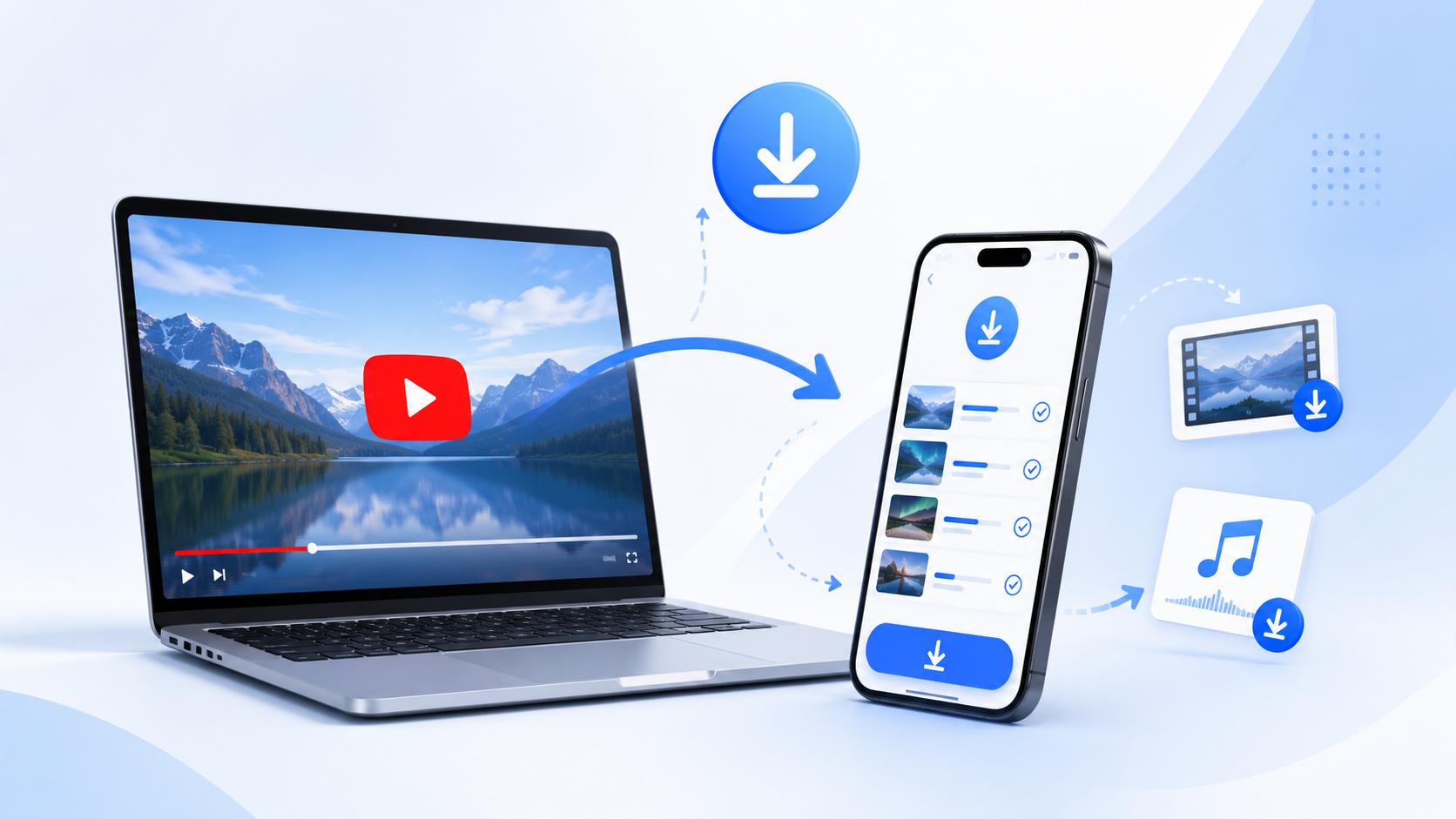
Copy the supported YouTube video URL → Paste it into the downloader → Check available formats → Choose your preferred option
With VdoSaver, the goal is to keep this process simple and easy to understand.
You can check the available quality and format options before choosing the one that fits your device and viewing needs.
Why Do People Save YouTube Videos for Offline Viewing?
Streaming works well when you have a fast internet connection.
But there are situations where having permitted content available offline can be more convenient.
Travelling
Internet access may be slow or unavailable during flights, train journeys, or long road trips.
Keeping authorized videos available offline means you don’t have to depend on a constant connection.
Learning and Tutorials
Some tutorials are worth watching more than once.
Whether you're learning software, following an educational lesson, studying a process, or watching a practical guide, offline access can make it easier to revisit useful sections.
Limited Mobile Data
Repeatedly streaming the same video can consume unnecessary data.
For content you are allowed to save, keeping one offline copy can be more practical.
Work References
Tutorials, presentations, demonstrations, and other work-related videos can sometimes be useful as offline references.
Unstable Internet Connections
Buffering can quickly ruin a video experience.
Offline viewing removes the need for continuous streaming once an authorized file has been saved.
How to Use VdoSaver for Supported YouTube Videos
Using VdoSaver is designed to be straightforward.
Step 1: Find the Video
Open YouTube and locate the video you want to save.
Make sure it is content you own, content that is licensed for downloading, or content you otherwise have permission to download.
Step 2: Copy the Video Link
Copy the URL of the video from your browser address bar or the available sharing options.
Step 3: Open VdoSaver
Visit VdoSaver from your preferred browser.
You don’t need to switch to a different device just because you found the video on your phone or laptop.
Step 4: Paste the Link
Paste the copied YouTube URL into the downloader field.
Step 5: Check Available Options
Available resolutions and formats can depend on the original video.
Select the option that best fits your needs.
Step 6: Save the Video
Follow the available download option and save the permitted content to your device.
That’s it.
No complicated workflow or unnecessary setup.
Which YouTube Video Quality Should You Choose?
One of the biggest mistakes people make is automatically choosing the highest resolution available.
Higher resolution is useful, but it also generally means a larger file.
The better choice depends on your device, available storage, and how you plan to watch the video.
Quality | Good For | Storage Use |
|---|---|---|
360p | Quick viewing, smaller screens | Low |
480p | Basic everyday viewing | Low–Medium |
720p HD | Mobile phones and tablets | Medium |
1080p Full HD | Laptops and larger displays | Higher |
4K | Large screens and high-detail viewing | Very High |
720p: A Practical Option for Mobile
If you mainly watch videos on your smartphone, 720p HD can offer a good balance between quality and file size.
It can work well for:
Tutorials
Educational content
Interviews
Short clips
General mobile viewing
For many smaller screens, moving from 720p to a much larger resolution may not always provide enough visible difference to justify the extra storage.
1080p: Better for Larger Screens
1080p Full HD is a strong choice when you want clearer detail.
It is particularly useful for:
Laptop viewing
Presentations
Detailed tutorials
Educational videos
Longer videos
Videos containing small on-screen text
If storage isn’t a major concern, 1080p can provide a good balance between clarity and file size.
4K: When Detail Matters Most
4K contains significantly more visual detail than lower resolutions.
It can make sense when:
The original video is available in 4K
You have enough device storage
You plan to watch on a large display
Visual details are important
But downloading every video in 4K isn't always necessary.
For everyday mobile viewing, HD or Full HD may be more practical.
What If You Only Need the Audio?
Sometimes the visual part of a video isn’t important.
Imagine you’re interested in:
An interview
A lecture
A discussion
A speech
A podcast-style video
An audio lesson
In situations where you have permission to save the content and an audio option is available, choosing an audio format can reduce file size and make listening more convenient.
Instead of keeping the entire video on your device, you can focus on the part you actually need.
YouTube Downloads on Mobile vs Desktop
Another common question is whether online video tools work differently across devices.
A browser-based service keeps the experience relatively simple.
On Android
Open your browser, copy the supported video URL, paste it into VdoSaver, and check the available options.
On iPhone or iPad
You can access VdoSaver through your browser and process supported URLs. Available file handling can depend on your browser and iOS version.
On Laptop or Desktop
Desktop browsers usually provide a larger workspace, which can be helpful when handling multiple permitted files or comparing available quality options.
What Makes an Online YouTube Downloader Useful?
A good online downloading experience should be simple rather than filled with unnecessary steps.
Here are a few things people commonly look for.
No Extra Software Installation
A browser-based solution removes the need to install another program just for occasional downloads.
Multiple Quality Options
Not everyone needs the same resolution.
Having different available quality choices gives you more control over storage and viewing quality.
Works Across Devices
Being able to access the tool through a browser makes it easier to use across mobile and desktop devices.
Simple Interface
You shouldn’t need technical knowledge just to process a video URL.
The experience should be easy to understand from the beginning.
720p vs 1080p vs 4K: Which One Is Right for You?
Still unsure?
Use this quick rule:
Choose 720p if:
You mainly watch on mobile and want to save storage.
Choose 1080p if:
You want better detail and plan to watch on a laptop, tablet, or larger screen.
Choose 4K if:
Maximum visual quality matters and storage isn't a concern.
The highest number isn’t always the best option.
The right resolution is the one that matches how you’ll actually use the video.
Common Reasons a Video May Not Process
Sometimes a video link may not work as expected.
There can be several possible reasons.
The URL Is Incorrect
Double-check that you copied the complete video link.
The Original Quality Is Limited
If the original upload is available only in a lower resolution, a downloader cannot create genuine 4K detail that wasn't present in the original source.
The Content Isn’t Supported
Not every video or URL can necessarily be processed.
When something doesn't work, start by checking the URL and the accessibility of the original content.
Quick Tips Before Saving a YouTube Video
Before choosing a download option, take a few seconds to think about how you’ll use the file.
1. Check your storage
Higher-resolution videos generally require more space.
2. Think about your screen size
You may not need 4K for a small mobile display.
3. Choose audio when video isn't necessary
For permitted audio-focused content, an available audio option may be more practical.
4. Check the original video quality
The quality available from the source matters.
5. Respect content rights
Only download videos when you own the content, have permission, or the download is otherwise authorized.
A Simpler Way to Handle Supported Video Downloads
Video downloading doesn’t need to be complicated.
For content you are permitted to save, VdoSaver gives you a browser-based way to process supported YouTube links and choose from the available options.
You can access it from your phone or computer, select a suitable resolution, and keep authorized content ready for offline viewing.
Have a video link ready?
Try the VdoSaver YouTube Video Downloader and check the available download options.
Want to Learn More About Online Video Downloading?
YouTube is only one part of online video content.
Different platforms, video resolutions, devices, and formats can all affect your downloading experience.
If you want to understand the complete process, including HD, Full HD, 4K, audio formats, mobile downloading, supported platforms, and common issues, read our:
Complete Guide to Online Video Downloading with VdoSaver
It covers everything in one place and helps you choose the right format based on how you actually plan to use your video.
Final Thoughts
The best video format isn't always the biggest one.
Sometimes 720p is enough. Sometimes Full HD makes more sense. And sometimes you may only need the audio.
The important thing is choosing the format that fits your actual needs.
With VdoSaver, supported YouTube video processing stays simple: paste your link, check the available options, and choose what works for you.
Save what you’re allowed to keep. Choose the quality you need. Watch it when it works for you.